 ObjectExplorer
 Find a file across four clouds?
A folder is a folder. Learn it once.
I was looking for one file and didn't know where it had been put. It could have been in any of the places our team keeps files. I opened four tabs.
Today
On AWS it would be in a bucket. On Azure it would be in a container, inside a storage account. On Google it would be in a bucket again, with a different console and different buttons. On the file server it would be in a share. Each console has its own layout, its own search box, and its own idea of where you start.
None of them agree on what a folder is, either. In object storage there are no folders underneath. There are keys with slashes in them, and the console draws folders by grouping keys on the slash. Most of the time that looks exactly like a folder. Then you rename one, and it copies every file underneath it, one by one, and deletes the originals. I knew that. I still opened four consoles and three command lines, and logged in seven times across them.
- AWS consolesearch the buckets
- Azure portalsearch the containers
- Google consolesearch the buckets
- File serversearch the share
- Terminalthree CLIs, three logins
Each console is well made for its own cloud. The problem is that I don't work in one cloud. The shared assumption was that each storage service is its own world, with its own vocabulary, so a person who uses four of them learns four worlds.
Ideal
So I asked what all of these things are. A bucket, a container, a share. As far as I can tell, to the person looking for a file, they are one thing: a place that holds files, some of them in folders. That picture is older than any of these services, and every person who has used a computer already knows how it works. You click it and it opens.
Underneath, the services really do differ. But the part a person touches is the same everywhere. Every one of these APIs can list what is under a prefix, grouped by the slash, a page at a time. That is a folder listing. So the same folder picture can sit on top of all of them, and I learn it once.
Where they differ, the picture should stay honest. A rename in object storage is a copy and a delete, and it should behave like one: never deleting the originals until every copy has come back.
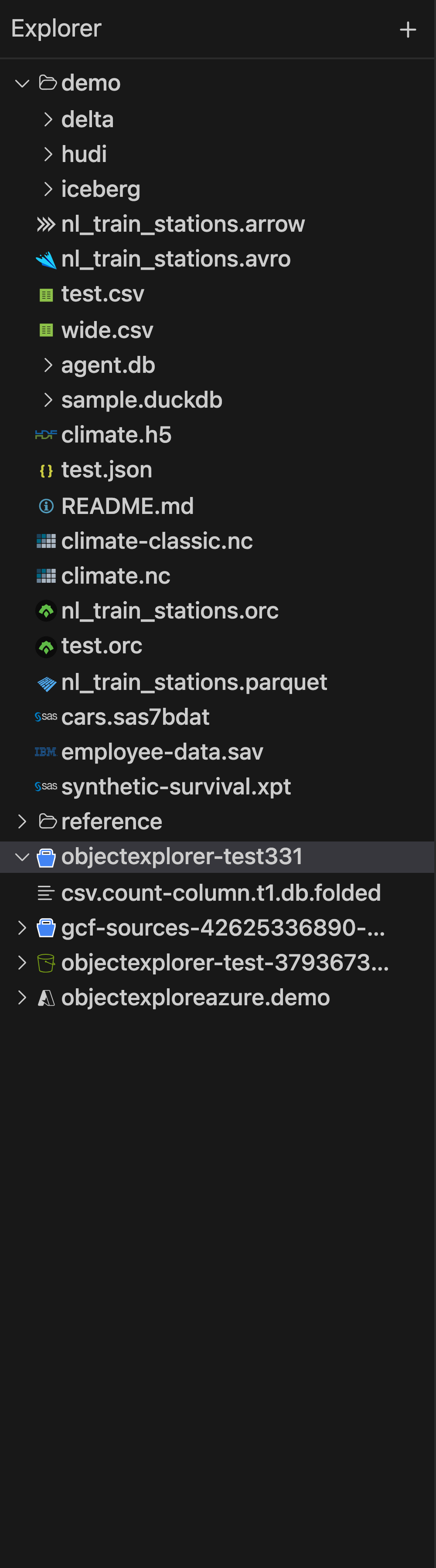
That is one tree with a local folder and buckets from three clouds, each drawn the same way and opened the same way. In the code, S3, Google Cloud Storage and Azure Blob are all listed with the slash as the delimiter, so their grouped prefixes become folders. Renaming a folder in any of the three copies every key under it and runs the delete only after all the copies are back. A local folder is renamed for real.
Where it stops
The file server is the gap. A share on a Windows file server is not one of the places the tree can open; S3 and compatible stores, Google, Azure Blob, OneLake and local folders are. And a folder rename in object storage is still as slow as copying everything under it, because that is what it is. The picture can hide the vocabulary. It can't make a copy free.
And I still sign in once per cloud. The tree gathers the places; it does not make them one account.
A folder is a folder. Learn it once.