 ObjectExplorer
 Python
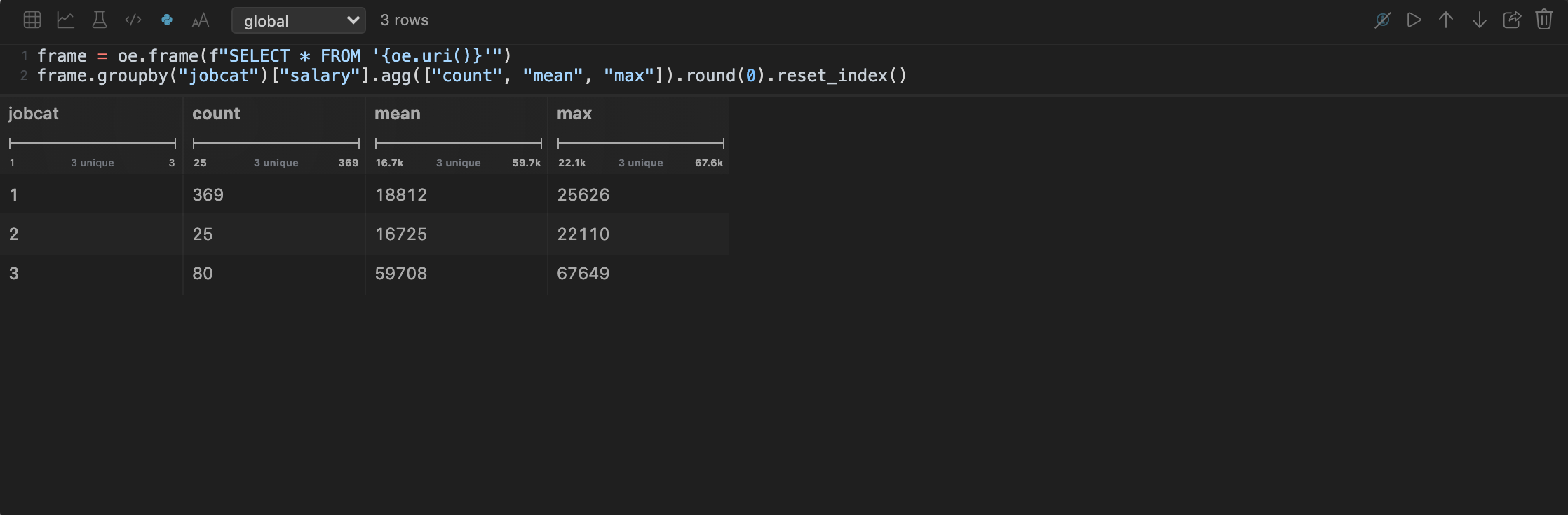
A Python cell runs real Python — in a real interpreter, in a virtual environment you made, with pandas or polars or whatever else you installed. It sits in the same notebook as the SQL and the chart, and what it returns flows into the cells below it.
frame = oe.frame("SELECT * FROM 's3://sales-eu/orders/2026-08-24.parquet'")
frame.groupby("region")["amount"].sum().sort_values(ascending=False)
The last value is the answer — there is no print to write, and no return. A DataFrame comes back as a grid, a matplotlib figure as a picture, anything else as its repr. Whatever you print along the way is shown above it.
oe — the objects, from Python
Every cell starts with oe already imported. It is how Python reaches the same storage the window reaches: your sign-ins, your caches, your rules. Nothing in a Python cell talks to a provider directly, so a bucket you can browse is a bucket you can read, and one you cannot is one you cannot.
oe.path(uri) | one absolute local path, downloading into the cache if needed |
oe.paths(uri) | a list of them with globs expanded — s3://b/y=*/*.parquet → forty paths |
oe.glob(uri) | the matching URIs, without downloading anything |
oe.stat(uri) | {"size": …, "mtime": …}, or None |
oe.query(sql) | rows from DuckDB, as a list of dicts |
oe.frame(sql) | the same as a DataFrame — needs pandas |
oe.open(uri, mode) | an open file over the local copy |
oe.current | the object this notebook is on |
oe.uri() | that object's URI — the same text a SQL cell writes for it |
A URI means the same thing here as it does in a SQL cell, so a query you wrote in one can be pasted into the other:
import pandas as pd

# every partition of a Hive export, as local paths
paths = oe.paths("gs://sales-eu/orders/year=*/month=*/*.parquet")
pd.concat(pd.read_parquet(path) for path in paths)
oe itself needs nothing installed — it is standard library only, so it imports in an environment you made a second ago and have not put anything in yet.
Kernels
A kernel is a running Python process, and it keeps everything you put in it. Assign a variable in one cell and the next cell has it; import pandas once and it stays imported.
The kernel is called global and it is shared across notebooks. Two objects open side by side are two views onto one namespace, which is usually what you want — load a frame while reading one file, reshape it while reading another. When it is not, pick new kernel… from the box in the cell's toolbar and name one; that cell gets a namespace of its own, and another notebook joins it by picking the same name.
A kernel belongs to one environment, and naming a new kernel is the only time you are asked which — and only if you have more than one, since a machine with one has nothing to answer. Cells never carry an environment of their own: a cell runs in whichever one its kernel was started on.
The ⓘ icon beside Run opens everything else about the cell in one place: what is in the kernel's namespace right now — every name, its type, and a word about what it holds, a DataFrame saying its shape — and anything the cell printed. The icon is struck through while that panel is closed, the way a crossed-out eye reads: there is something in there and you are not seeing it. The namespace is asked for rather than remembered, because another notebook may have changed it since.
A cell whose last line is not a value — an assignment, an import, a bare print — draws nothing at all, and stays that way. What the kernel did is behind the icon for whenever you want it.
Virtual environments
Settings → Python. Everything here is made by uv, and every environment lives in one place:
~/.objectexplorer/venvs/Name an environment, pick a version, and it is made. The versions in that box are the Pythons found on your machine — the ones uv manages and the ones on your PATH — offered where they are actually useful rather than as a list to read. If none is found the pane says so, and points at python.org/downloads or uv python install 3.12. If uv itself is missing it says that first, because nothing below it can work.
The first Python cell you run makes an environment called default if you have not made any yet, so a fresh machine is not a four-step setup before 1 + 1.
Installing packages
Open an environment and you get what is in it, a command box, and a row of one-click badges for the packages a data notebook reaches for first — pandas, polars, numpy, matplotlib, pyarrow, duckdb, pyspark, scikit-learn.
uv pip install "polars[all]" pyarrowThe box takes anything uv pip install takes — extras, pins, git URLs, -r requirements.txt — and nothing else: a command that does not start with uv pip install is refused, and the environment to install into is filled in for you, so it cannot go to the wrong one by accident.
Spark
Install pyspark and a Spark session in a Python cell can name your objects directly, with no prefix and nothing to configure:
from pyspark.sql import SparkSession
spark = SparkSession.builder.getOrCreate()
spark.sql("SELECT * FROM `demo/nl_train_stations.parquet` LIMIT 10000")
The backticks are needed — : and / are not characters an unquoted SQL name may contain — and inside them goes the same URI a SQL cell is written with, or a path under a folder you have added.
What happens behind it is what already happens for SQL: the sign-in you have given the app is reused, the object is downloaded once into the cache, and a format Spark has no reader for — .sav, .sas7bdat, .xpt, .xlsx — is converted to parquet first. Spark then reads a local file. There is no cloud connector to configure, no key to hand it, and no spark.hadoop.* line to write.
A name that is not one of ours is left alone, so your own tables, views and parquet.\path`` reads behave exactly as they would without this.
Note the plain getOrCreate() with no .master(...) in front of it. How big the session is comes from the environment's own setting, and a builder that names its own master overrides that.
How big the session is
Install pyspark into an environment and Settings → Python grows two sliders for it: how many cores a session may use, and how much memory its driver may take.
Each slider runs the length of the machine — all 10 cores, all 24 GB — and the thumb stops story of the end where the machine keeps something back. Memory stops at three quarters, so a 24 GB machine lets a session have 18 GB and holds the rest for the operating system, this app and your browser; the end of the track past that is shaded. Cores have no such reserve, so that slider goes the whole way. The number beside each one reads 18 of 24 GB — what you gave Spark, out of what you have.
Two facts, kept apart on purpose: a machine with 24 GB really does have 24 GB, and 18 is the share Spark is allowed. Flattening them into one number makes a ceiling look like a mis-measured machine.
That ceiling is the point: a JVM told it may have more memory than the machine has does not fail on the number, it starts, allocates, and takes the machine down with it. Unset, a new environment gets all but one core and a quarter of the memory.
This is a local Spark — one process on your machine, where the driver is the executor. That is why memory is a driver setting, and why it can only be set here: a JVM's heap is fixed when it starts, which is before any .config() in your builder is read.
A kernel that is already running keeps the size it started with. Move a slider and the next kernel you start picks up the new numbers.
Checking what you got
sc = spark.sparkContext
print(sc.master)                                    # local[2]
print(sc.defaultParallelism)                        # 2   — the cores in use
print(spark.conf.get("spark.driver.memory"))        # 6g
print(sc._jvm.java.lang.Runtime.getRuntime().maxMemory() / 1024**3)   # 6.0
That last line is the one to trust: it is the JVM's real heap, so it says the setting reached the launch arguments rather than only the config map.
spark.executor.memory and spark.cores.max are not the keys to check, and both report not set on a healthy local session. They belong to a cluster, where an executor is a separate process from the driver. Local mode runs one JVM that is both — spark.sparkContext._jsc.sc().env().executorId() answers driver — so the executor keys are never read, and setting spark.executor.memory to 16g on a 2 GB session changes nothing at all.
When the session ends
Stopping a kernel — changing its environment, deleting one, closing the app — stops the Spark session with it. The JVM is asked to shut down first; one that has stopped answering is killed about eight seconds later, because a driver holding several GB is not something to leave running until the machine is next restarted.
Every JVM this app starts is named, so one you find in ps is identifiable:
java … -Dobjectexplorer.venv=default …That is also what makes it safe to kill by hand — and it is what the app itself checks before killing one, so it can never take out a process that merely inherited the same pid.
If a session's JVM dies on its own, the next cell starts a new one. pyspark would otherwise hand back the dead session forever, leaving the kernel unusable with no way to ask for another.
What it needs. A JDK 17 or 21 — Spark does not yet run on 26. The app finds one wherever your package manager put it, including Homebrew's openjdk, which is deliberately kept off your PATH:
brew install openjdk@21The sliders and that file are the same thing, not a copy of each other. Move a slider and the file changes; edit the file and the sliders say what you edited; delete it and the environment is back on its defaults, with the file written again the next time anything looks. A hand-written number over what the machine has is still held to the cap on the way back in.
Outside the app. A terminal session needs to be pointed at the same configuration, which the app rewrites every time it starts. There is one per environment, named after it:
export SPARK_CONF_DIR=~/.objectexplorer/spark-conf/defaultThe cached files a session reads are on this machine, so a cluster whose executors cannot see your home directory is not what this is for.
What it is not
There is no Jupyter server, no notebook file on disk and no .ipynb to keep in sync. The cells are kept per object like every other cell in the notebook, and the process runs on your machine beside the app.
Python runs only in the desktop app and the local server — the browser front door has no interpreter to run it in, and the Python cell is not offered there.
Next: charts.