 ObjectExplorer
 Previewing an object
Open an object and it renders in place, with the viewer its format deserves — no download dialog, no temporary file to clean up, no second application.
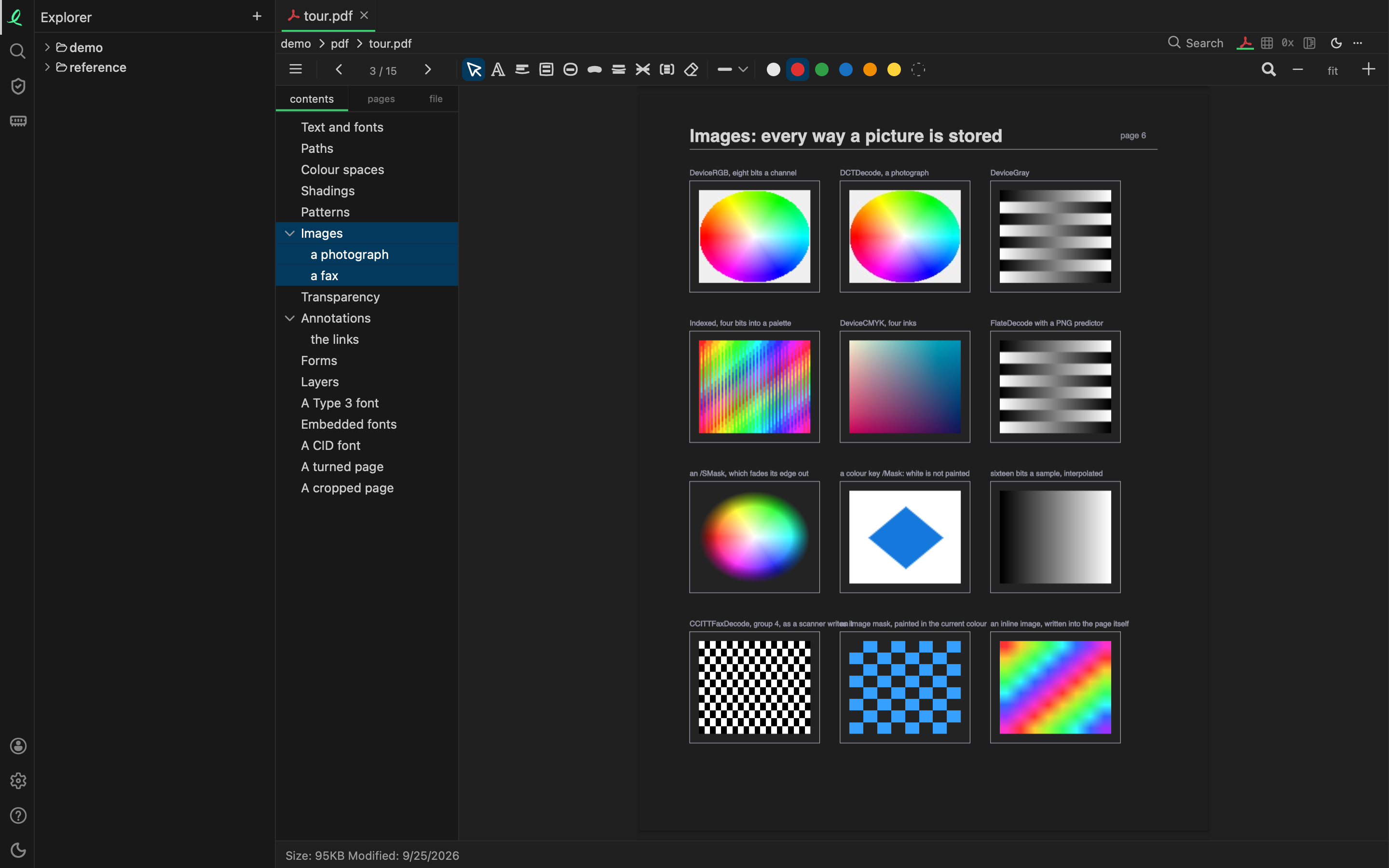
Every reader runs on your machine, reading the bytes the provider streamed back into the cache. On macOS and Linux a reader runs apart from the window, so a file that crashes or hangs its reader fails its own tab, which says why, and nothing else.
What decides the viewer
The bytes, and then the extension. A file with no extension, or a wrong one, is sniffed: the first bytes decide, which is how a .hoodie folder is read as a Hudi timeline, a .db as SQLite or DuckDB, and a .hdr as a texture rather than a text header. A zip is told apart by what it holds: a Power BI report, a Word, Excel or PowerPoint file or an epub opens as that, and any other zip as a folder. A PNG, JPEG, GIF, WebP or PDF with no extension opens as itself too.
The toolbar
On the right of the breadcrumb: Search finds text in the view, then one icon for each way the same object can be shown, then the pane's theme and the … menu.
| View | the format's own viewer — a grid, a page, a picture, a model |
| Table | the rows, where a format has them |
| T | the text |
| 0x | the bytes — see hex |
| Structure | the file's internal shape, where a format has one |
| … | Refresh reads it again; Information says what reads it |
The status line under the view gives the size and the date.
A tabular object opens as a notebook instead: the grid is the first cell's output, and there is a query above it. Its share icon is over the grid — see sharing a table.
With no object open at all, the window shows where the storage went — every root you added, as one disc.
Next: column summaries.