 ObjectExplorer
 The tree and the list
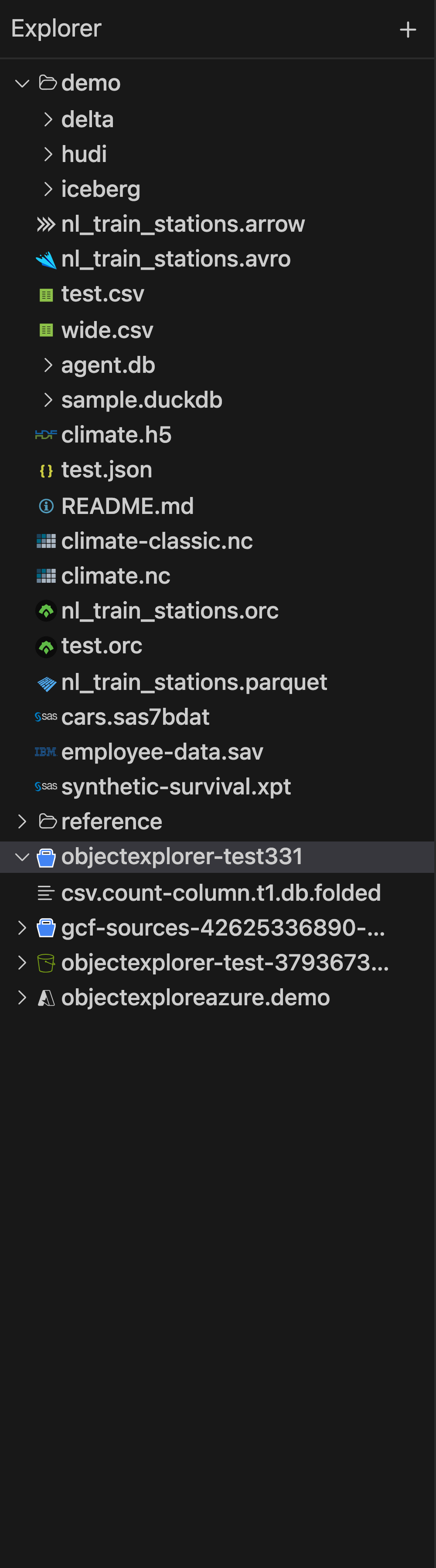
The sidebar holds every root you added — local folders and cloud buckets in one tree. The pane beside it lists whatever is selected.
The columns
| Column | What it says |
|---|---|
| Name | with the icon of the format |
| Size | the object's size; a folder shows Σ until you click it |
| On disk | how much of a cloud object is on this machine: its cached copy |
| Modified | the provider's own timestamp |
| Cost/mo | what keeping this object at its storage class costs per month, for cloud rows |
| Class | the storage class, when the folder holds more than one |
| Note | the one thing worth knowing about the bill: days left of a minimum storage duration, or a small object billed at the class's minimum size |
| Activity | a sparkline of how this object's size has moved over the listings the app remembers |
A column with nothing to say in this folder is left out: a local folder has no on-disk, cost, class or note column.
Σ counts a folder: click it, and every file under it is added up in one walk — the cell then says the size, and its tooltip how many files in how many folders. A walk stops at 20,000 files and marks the size with >. Click again to count again.
A cloud folder adds a cost line at its foot — what the folder, or the one object you picked, costs a month, its class and region — with Optimize beside it: see optimize. Prices need the bucket's region and class; those are asked of the provider once a session and kept.
The … menu's Information shows what the app knows of an object: its kind, which reader opens it, the views it has, its size and date.
The grid
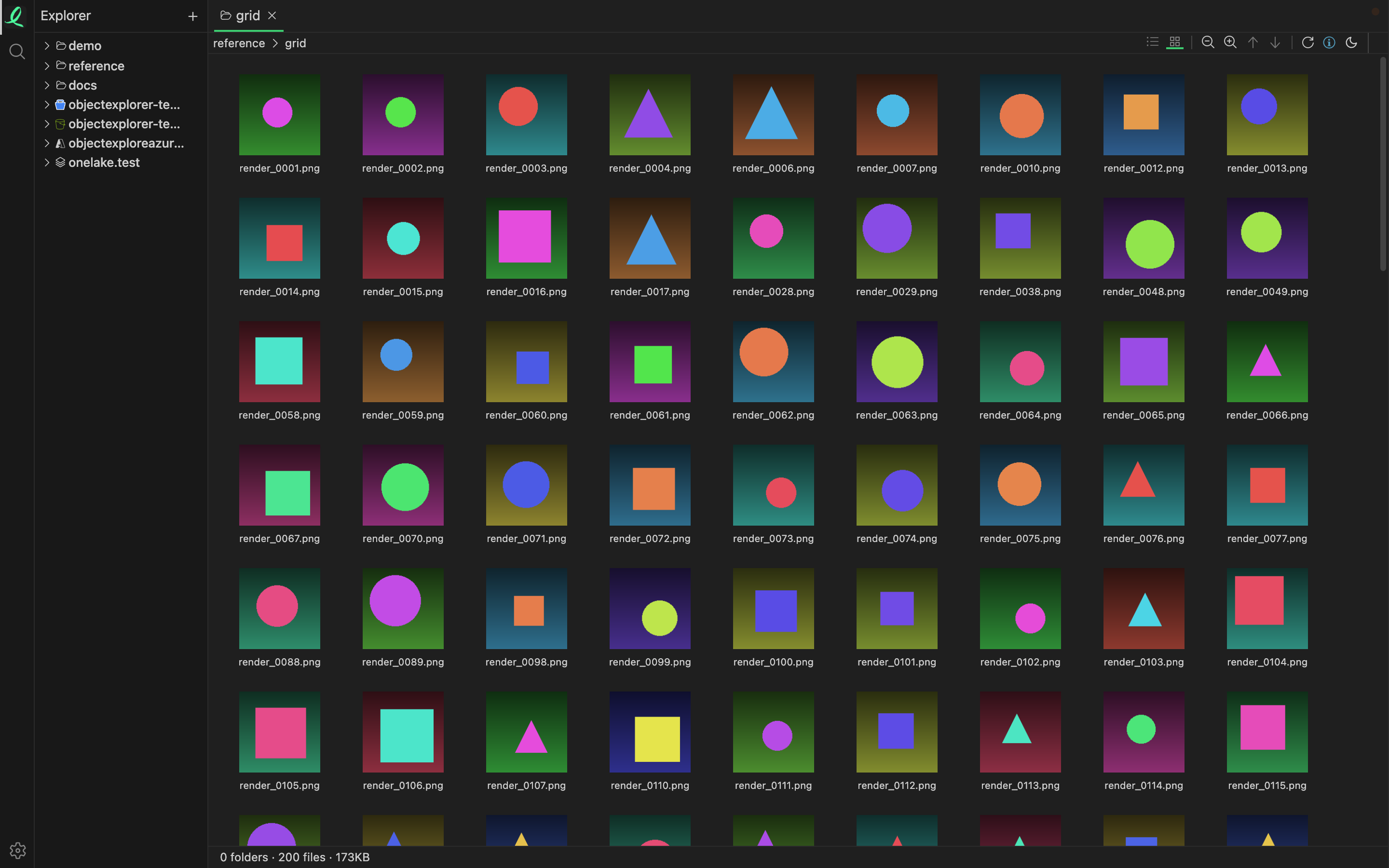
The Grid icon in the toolbar, beside the list icon, shows a folder as tiles instead of rows; Icons shows the pictures alone, filling the tiles. Each tile is a preview of what the object is:
| Object | Its tile |
|---|---|
| an image or a texture | the picture |
| a PDF | its first page |
| a slide deck | its first slide |
| a drawing or a diagram | the drawing |
| a Markdown, Word or Jupyter document | the start of its page |
| a table | its row and column count, and first rows |
| a text file | its first lines |
| an archive, an ebook, a disk image, a database | the names at its top |
| anything else | the icon of its format |
Tiles come in five sizes, 64 to 256 pixels; the magnifier icons step between them. Two arrows sort by name, up or down.
Drag a tile to put it where you want it. That layout is kept for the folder, until you sort it again. ⌘Z undoes, as in the list, and Esc clears the selection.
Reading a folder again
A cloud listing is kept, and shown at once the next time you step into that prefix. Younger than eight hours, it stands as it is; older, it is shown while the provider is asked again in the background. Refresh in the … menu asks the provider now, past that.
Hidden and deleted rows
Two toggles in the … menu decide what the list shows beyond the obvious:
- Hidden — dot-files and
__MACOSX. They are hidden until you turn this on. - Deleted — a name this folder had before and does not have now, struck through. Nothing is marked deleted until a folder that knew the name lists it again without it, so the mark means "it went", not "it was never here".
Keyboard
Arrow keys walk every row, and ⇧ with them extends the selection; → enters a folder and ← steps out; Enter opens what is selected. PageUp PageDown move a screenful, Home End go to the ends, and ⌘A selects all. The full list is on keyboard shortcuts.
Next: where the storage went.