 ObjectExplorer
 Connecting storage
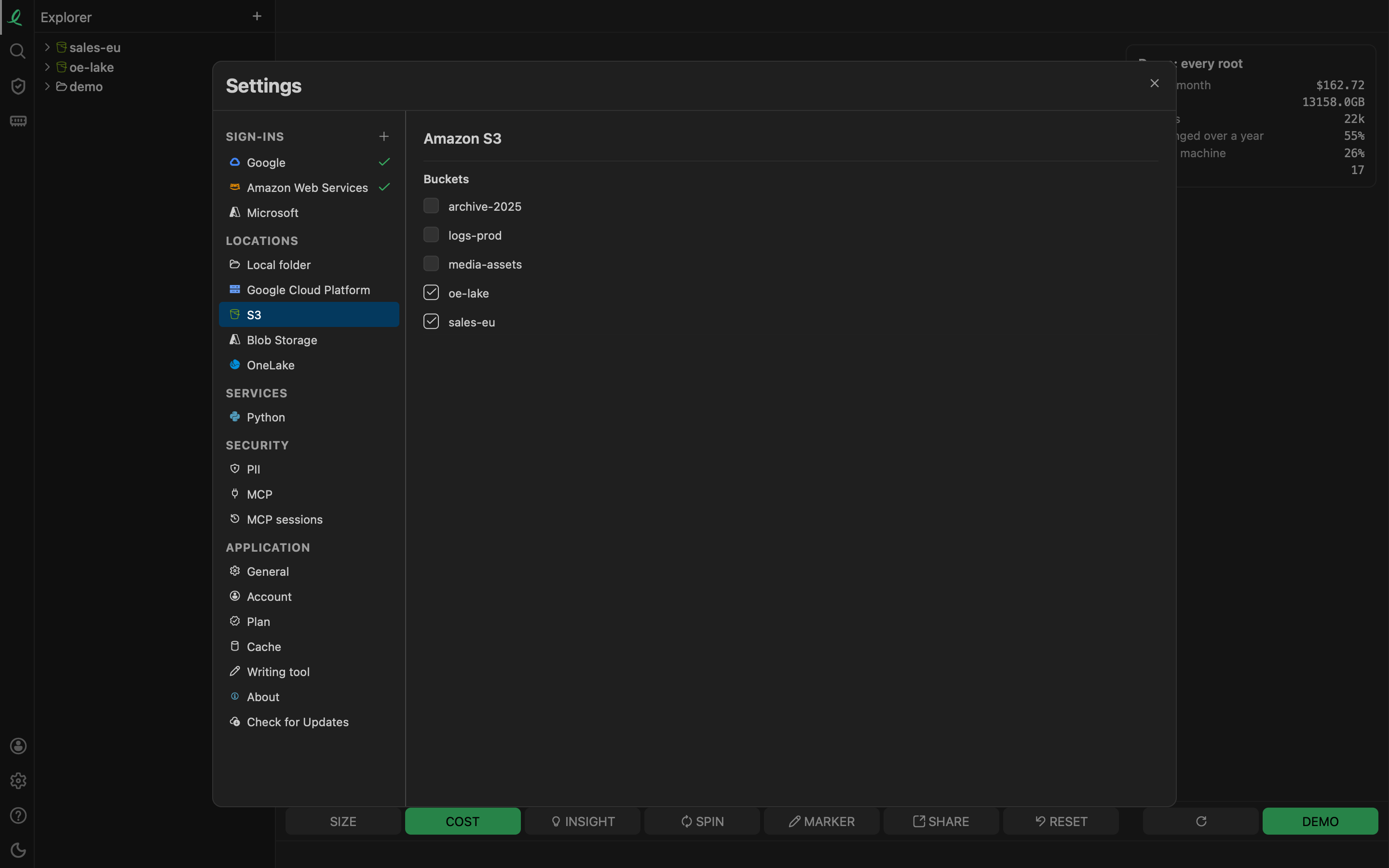
Open Settings from the activity bar, or the + in the sidebar header, which opens it on Local folder. Two groups on the left do the work:
- Sign-ins: who the app signs in as — Google, Amazon Web Services, Microsoft, and each S3 compatible endpoint you added. A sign-in that works carries a check. The + beside the group adds an S3 compatible endpoint.
- Locations: what can go in the tree — local folders, and the buckets, containers and workspaces of each service that is on.
| Provider | Connect with |
|---|---|
 Amazon S3 Amazon S3 | whatever your AWS setup already has, an SSO or MFA sign-in in the app, or a pasted key or accessKeys.csv |
 Google Cloud Storage Google Cloud Storage | Application Default Credentials, a Google sign-in through gcloud, or a service account key |
 Azure Blob Storage Azure Blob Storage | a Microsoft sign-in in the app, a connection string or SAS URL, or the Azure CLI |
| Microsoft OneLake | a Microsoft sign-in — the same one Azure Blob uses |
| S3 compatible | your own endpoint: R2, B2, Wasabi, MinIO and every other storage that speaks the S3 API |
 Local folders Local folders | the folder picker — any disk, any mounted volume |
| Google Drive | the Drive API, signed in with OAuth on a server |
| Dropbox | the Dropbox API, signed in with OAuth on a server |
| OneDrive | Microsoft Graph, signed in with OAuth on a server; SharePoint libraries too |
| Box | the Box API, signed in with OAuth on a server |
Each sign-in has an On and Off switch for every service it opens. A service that is off leaves Locations and the app. Started with cloud=off, the app offers no cloud at all: the disk only.
Roots, not accounts
What lands in the tree is a root: one bucket, one container, one folder. Under Locations each bucket has a tick, and ticked is in the tree. You add the ones you work in, so a thousand-bucket account still opens on the five you actually use. When an account may read a bucket but not list it, type the bucket's name instead.
A local folder can be unchecked to take it out of the tree without forgetting it, and checked again later.
The Free plan adds up to three cloud roots per provider and five local folders. Pro lifts both caps; see pricing.
From the command line
oe does what the panes do, without a window:
oe signin aws                       an access key, read from the input or --file
oe signin google --browser          Sign in with Google, through gcloud
oe signin microsoft --browser       Sign in with Microsoft
oe signin s3 minio --endpoint http://localhost:9000
oe folder add s3://reports          a bucket or folder added to the tree
A key is never taken from the command line itself: type or paste it, or name a file. An open window picks the change up.
Who can add a connection
Signing in, adding a key and adding a root happen only on the machine the app runs on, or with oe. When the app serves other people — a server they reach in their browser, or a desktop started with connect=<server address> — their pages have no Sign-ins, and a remote signed-in user sees only the roots the owner turned on in Settings → Admin → Other machines. A request counts as local only when it comes from this machine and did not pass through a proxy; an ssh tunnel counts as local. The keys stay on the server: a connected window reads the buckets without ever seeing them.
Where the credentials go
What you add is saved in storage.json in the app's folder, and every secret in it — a key, a token, a service account — goes to the system keychain (the macOS keychain, the Windows Credential Manager, the Linux Secret Service), the file keeping only a reference. What your cloud's own tools already hold stays where they keep it: an AWS SSO sign-in in ~/.aws, a Google sign-in in gcloud's folder. See where your data lives.
Next: Amazon S3.