 ObjectExplorer
 Where the storage went
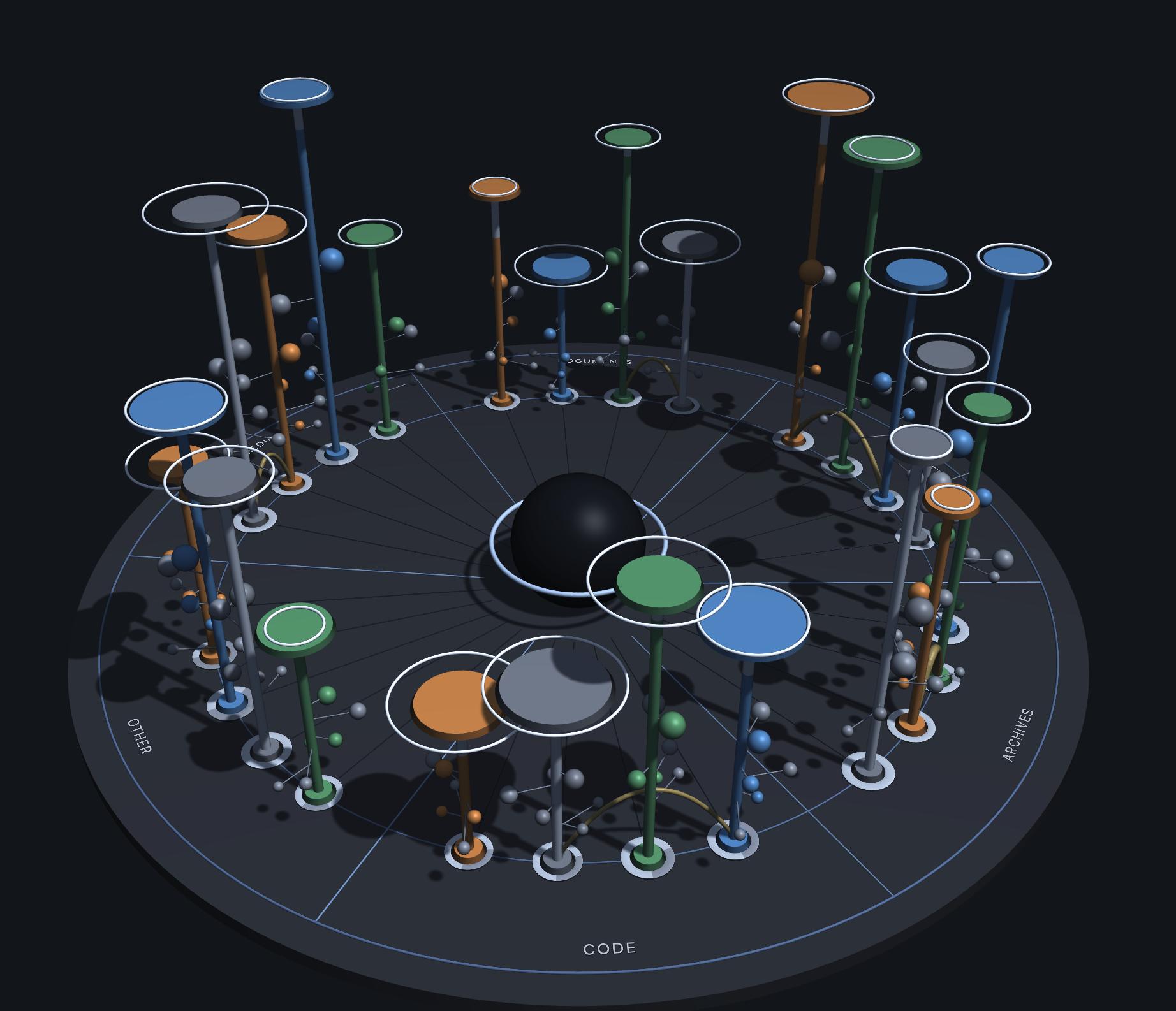
Open ObjectExplorer with nothing selected and this is what fills the window: every root you have added, drawn as one disc. A sector per kind of thing — media, documents, datasets, archives, code, other — and inside it a pole for each root holding that kind of thing, as tall as what it holds costs, wearing its provider's colour: orange for AWS, blue for Google Cloud, green for Azure, grey for this machine, purple for a synced folder.
It answers the question a console will not: not what is in one bucket, but where the money goes across all of them, what has gone cold, what is already on this laptop, what nobody has opened, and what you are paying to keep twice.
Nothing is asked of any provider to draw it. The disc is made from what this window has already listed, so it opens instantly, works with the network off, and costs nothing to look at.
Reading one pole
Read a pole from the floor up. The disc walks you through the same key itself: press ? in the toolbar and choose Tour this page, and each mark is turned to the front and lit as it is named.
| Part | What it says | What to look for |
|---|---|---|
| Sector | one kind of thing, read from the file extension | the sector with the tallest poles is what you are paying for |
| Colour | which provider the pole belongs to | |
| Height | size or monthly cost — one scale for the whole disc | the tallest pole is where the money goes |
| Stack | the lower part, in the provider's colour, is held only in the cloud; the pale part above it is already on this machine | mostly coloured means you are paying to keep bytes you never pulled |
| Cap | wider means more objects | a wide cap on a short pole is a million small files |
| Ring | lying on the cap: how much was read, on the same scale as the cap | a ring the size of its cap is every object opened about once; wider is the same objects fetched again and again; none is never opened |
| Base | who read it: the band round the foot is shared between the pale arc (you, in this window) and the dark arc (an agent); thicker is more bytes moved | an empty band is a pole nobody looks at |
| Ball | one of six named objects — the three biggest changed inside the year and the three biggest that have not; grey is cold, further out is older, higher up is more of the pole | a big grey ball high on a tall pole is an archive candidate |
| Arch | the same bytes held by two poles, rising from the foot of one to the foot of the other; thicker is more of them | follow it: one of the two copies is usually not needed |
| Post | nothing measured yet: a short post in its provider's colour, with no stack, no cap and no balls | click it, then open it once in the tree |
A post is also what stands for a cloud that is not connected at all. AWS, Google Cloud and Azure always have a place on the disc, in a last sector called Not connected, so a disc with no AWS on it says so rather than leaving a gap.
Nothing on the disc says how often anything was written. That is not recorded anywhere — see where the usage numbers come from.
If you see…
| If you see… | Read it as… | Next action |
|---|---|---|
| A tall pole | high value in the measure you picked | switch between Cost and Size to see what drives it |
| A tall pole with grey balls | a lot of old data at today's price | click the pole and read its share over a year |
| One big ball high on the pole | one object dominates | click the ball to name it |
| A wide cap | many objects | compare the object count with the size |
| A ring wider than its cap | something reads it again and again | check the base: pale is a person, dark is an agent |
| An empty base and no ring | paid for, never opened | |
| An arch | the same bytes in two places | click either end for the size, and Draw insights for the saving |
| A post | nothing listed there yet | open it once in the tree |
Sectors and colour
A sector is a kind of thing, and the colour is whose it is — two questions, two channels. One bucket holding video, logs and exports stands as several poles, one in each sector, each still wearing its provider's colour. That is what makes the disc worth reading when only two or three roots have been added: three roots is a dozen poles, and the question it answers is "what kind of thing am I paying for, and where".
The kind is read from the file extension and from nothing else. A folder called logs/ full of screenshots is a folder of screenshots, and gzipped logs count as archives.
Walking into it
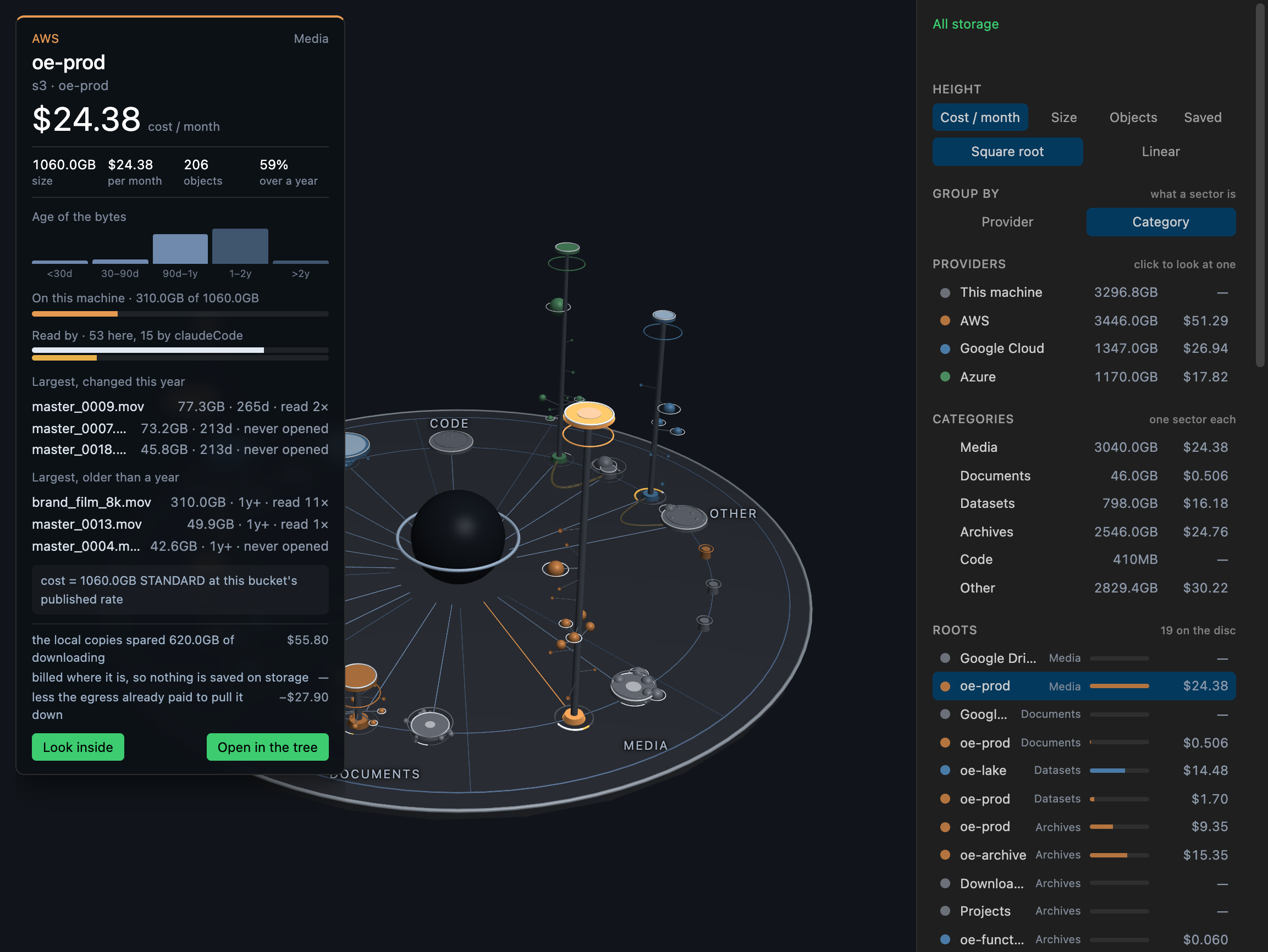
The disc is the same size whether it holds three poles or forty. What changes is how close together they stand, and each sector keeps its own arc. Past forty-eight poles the smallest are gathered into one pole per sector and provider, labelled with how many it stands for.
Click a pole, then Look inside on its card, and the disc redraws for that root alone: one pole per folder inside it and per kind of thing it holds, with the same marks all the way down. The hub's card names where you are standing. Escape lets go of what is picked first, and then walks back out to the whole disc.
The card
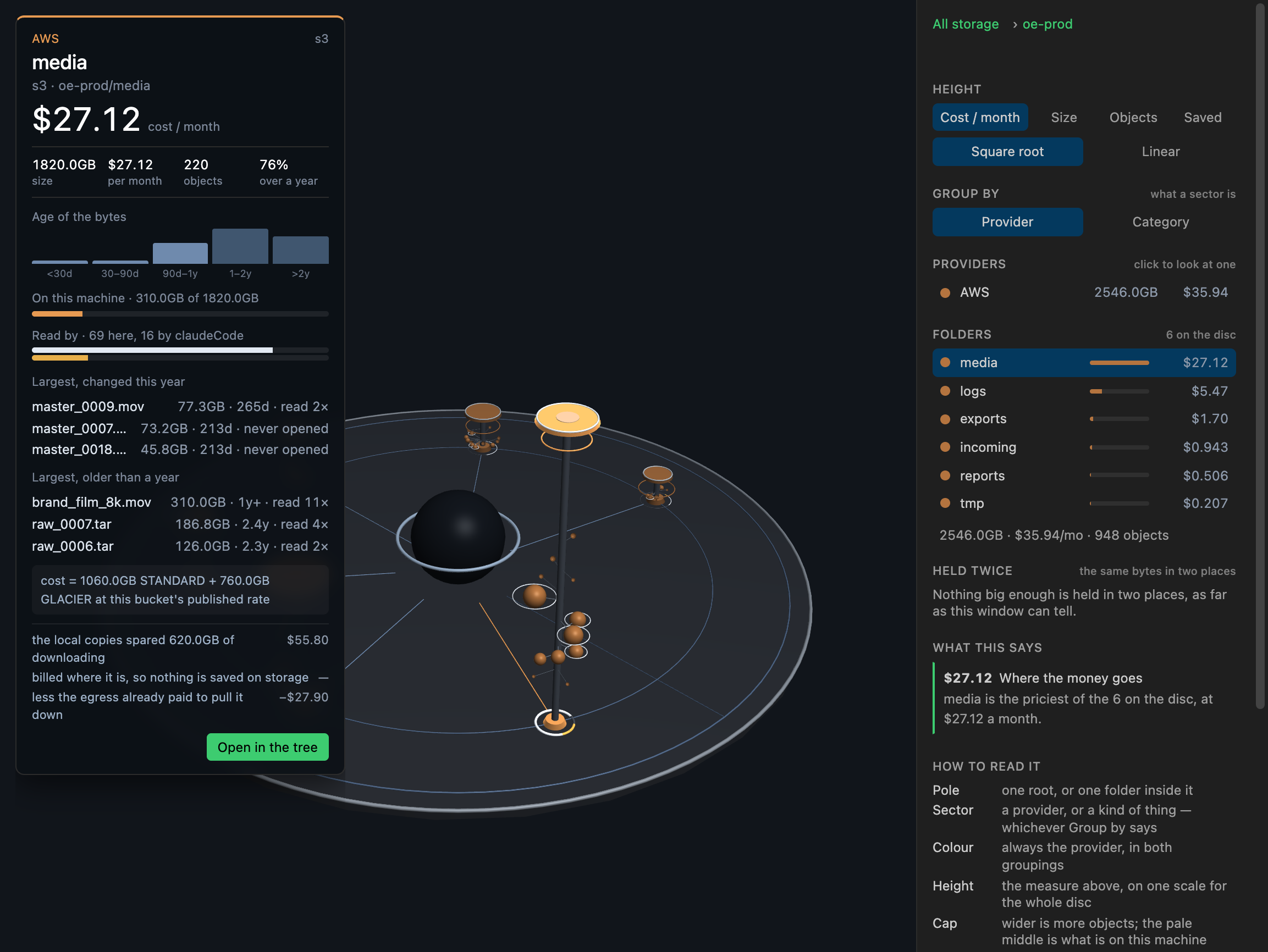
Point at anything and a card beside the disc says what it is; click and the card stays up while you turn the disc.
- A pole shows its size, cost, object count and share over a year, the age of its bytes, how much is on this machine, who has read it, its six named objects — click one to open it — and what keeping it here has saved. It ends with Look inside and Open in the tree.
- A ball is one object: its size, its age, its share of the pole, its storage class and how often it was opened, and Open it.
- The hub in the middle adds everything up: cost a month, size, objects, share over a year, share on this machine, and what the local copies have spared.
- A post says nothing has been listed there yet, or — for a cloud that is not connected — offers Add a connection….
Saved on a pole's card is three numbers, kept apart: the egress the local copies spared, what no cloud is charging rent on, and the egress already paid to pull the copies down. For a bucket, the first and third apply: the bytes are billed where they are, so a local copy saves the download and nothing else. For a folder on this disk the second applies — nobody is charging rent on it — and the card names the rate it was valued at, because a folder on your own disk has no published price and one had to be borrowed.
The toolbar
Along the bottom of the disc:
| Button | What it does |
|---|---|
| Size / Cost | what the heights measure |
| Draw insights | circles the poles the numbers single out and writes each finding beside it; press again to take them off |
| Spin | turns the disc slowly until pressed again |
| Marker | draws on the glass over the disc: while it is on, a drag is a stroke instead of a turn |
| Share | shares the disc as a table — one row per pole, with its kind, provider, size, objects, cost, bytes held here, cold bytes and reads |
| Reset | takes off the insights and the marker's strokes, lets go of what is picked, and puts the view back where it started |
Draw insights writes up to five findings, worked out from the numbers rather than written by anyone: where the money goes, warm storage holding cold data, one object that is most of a pole, a pole that is paid for and never opened, and the biggest thing held twice.
Two things the height can be
| Measure | What it compares |
|---|---|
| Cost | size × storage class × the bucket's region, with each class's per-object minimum, per month |
| Size | the bytes themselves |
The disc opens on Cost when anything on it has a published rate, and on Size when it holds only folders on this disk. How many objects is the cap's job, and what a place has saved is the card's.
Heights are always on a square-root scale, because storage is heavy-tailed: one backup bucket on a linear scale would flatten every other pole into the floor.
A folder on this disk has no published rate, so it has no cost — it reads — rather than $0, which would say something untrue.
A worked example
The demo sample — what the Demo switch shows — is seventeen roots across AWS, Google Cloud, Azure and this machine's own folders, one of them never opened. The hub in the middle adds it up: $162.72 a month for 13,158 GB, 55% of it unchanged for over a year and 26% already on this machine. Reading it in order:
- The heights, in Cost, which is where the Size/Cost switch starts. The tallest pole is
oe-prod's media at $24.38 a month. - Switch to Size. Now the tallest is the media in
Google Drive, 1,280 GB — and it has no cost at all, because a synced folder has no published rate. Between the buckets,oe-prodis 2,374 GB for $36.64 andoe-lakeis 1,344 GB for $26.88: three quarters of the cost on just over half the bytes, because every byte ofoe-lakeis in Standard while 926 GB ofoe-prod's archives are in Glacier. - Look for grey balls. 51% of
oe-lake's datasets have not changed in over a year, and they are still held at $18.63 per TB; its other files have all gone grey. That is a lifecycle rule waiting to be written. - Look for one big ball.
prod_2026_full.dumpis 100% of the other files inDownloads, all 780 GB of them, and 67% of the other files in the Azure bucketoestorage.backups, 780 GB of 1,170 GB. - Follow the arch from it. Those are the same 780 GB — matched by name and size — and deleting the copy on the pricier side is $15.52 a month.
- Look for an empty base.
oe-archivehas no reads at all — nobody and no agent has opened anything in it since this window started counting — and its archives alone cost $16.71 a month. - Read along the sectors. A sector is one kind of thing, so
oe-prodstands in four of them: $24.38 of media, $7.34 of archives, $3.45 of datasets and $1.47 of documents. The lifecycle rule to write is about video, not about logs. - Click to check. Every card ends with the sum behind its headline, so the impression the picture gave can be held against the arithmetic before anyone acts on it.
Draw insights in the toolbar writes the same findings — steps 1, 3, 4, 5 and 6 — over the disc, each pointing at its pole. That is six decisions from one screen, none of which a bucket listing would have offered.
Moving around it
The disc moves like every other three-dimensional view: drag to turn, ⇧-drag to pan, wheel to zoom, double-click to start over. The full list is on moving around a view.
Click a pole, a ball or the hub in the middle to pin its numbers; click empty space or press Escape to let go.
Where it opens
It fills the window whenever nothing else is open. Settings → General turns that off, and ⇧⌘P → View: Storage Usage opens it as a tab whenever you want it.
A fresh install has nothing of its own to draw yet, so the disc opens on made-up data with the Demo switch on — the sample in the worked example above. Switch Demo off to see yours, and on again at any time to see what a full disc looks like. After seven days of use the disc opens on your own data instead; the switch still works. At objectexplorer.com/app the demo is always where it starts.
With Demo off and nothing listed yet, the disc says so, with Add a connection… under it. Add a connection, open it once, and a pole appears the next time it is drawn.
Every number on it is explained in where the usage numbers come from.
Next: optimize.