 ObjectExplorer
 The PDF reader
pdf
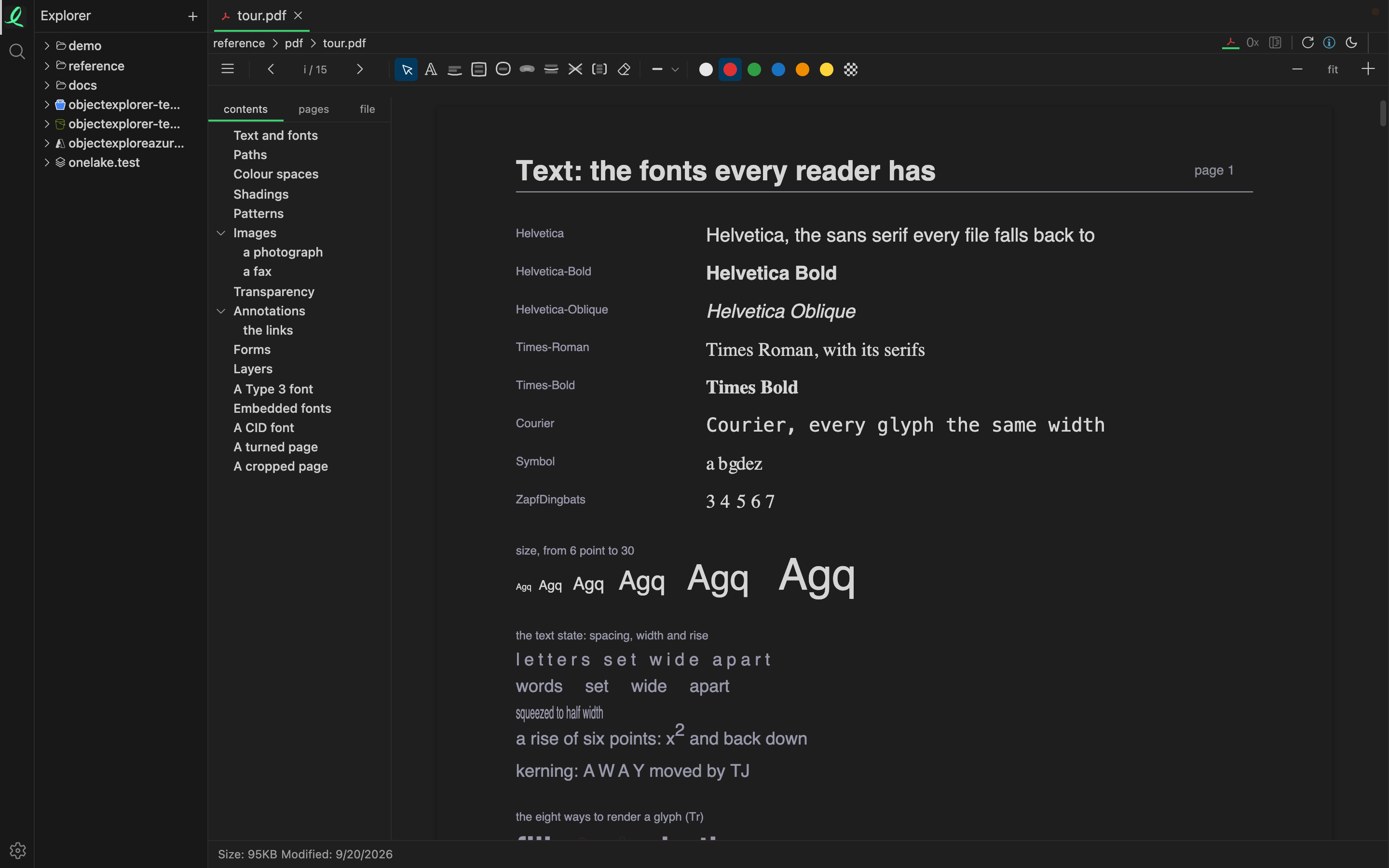
A PDF is drawn by ObjectExplorer's own reader and painter, not by the browser's viewer, so it reads the same in the desktop app, in npx and at objectexplorer.com/app. Nothing is sent anywhere to be rendered.
The page follows the window's light or dark theme, and it is not a filter over a white page: every colour is mapped as it is painted, so the text flips and the photographs do not. Only the page you are reading and two either side of it are decoded, so a thousand-page file opens as fast as a short one.
What it draws
- Text you can select and copy — the file's own text, placed where its glyphs were painted, so a selection follows the lines. A scanned page whose text was read by OCR selects too.
- Links — one inside the document jumps to its page, one that leaves it opens.
- The file's own annotations — filled-in form fields, stamps and text boxes, drawn as the file says they look.
- Encrypted files that only mark what may be printed or copied, which is most of them. A file that really needs a password says so rather than opening wrongly.
Find
⌘F opens the find box over the page and searches the whole document. Every hit is marked; Enter steps to the next and ⇧Enter back.
The side panel
☰ opens a panel beside the page with three tabs:
| Tab | What it holds |
|---|---|
| contents | the document's bookmarks, as a tree — click one to go to its page |
| pages | a thumbnail of every page |
| file | what the file says about itself — title, author, dates, PDF version — and its attachments |
An attachment is saved with a click, the way a download is.
Notes
The toolbar holds eight ways to mark a page. Seven are drawn over words: pick one, then select the text it goes on.
| Mark | Drawn as |
|---|---|
| Underline | a hand-drawn line under the words |
| Box | a box around them |
| Circle | a ring around them |
| Highlight | a marker stroke through them |
| Strike through | a line through the middle |
| Crossed off | a cross over them |
| Bracket | a bracket beside them |
The eighth is Text: click the page and type a note there. It is set in one of nine faces — Hand, Marker, Sans, Serif, Mono, Rounded, Helvetica, Times, Courier — at one of five sizes, aligned left, centre, right or justified.
Beside the marks, the row sets the colour, the thickness and the line style of the next one. The eraser takes a mark off again, and the pointer at the start of the row is the way back to plain reading and selecting. ⌘Z takes back the last mark, and Delete removes the one that is picked.
The notes are yours, not the file's: nothing is written into the PDF. They are remembered for that file in this browser, on this machine.
Moving around
The page scrolls. Arrows, Space, PageUp, PageDown, Home and End move through it the way they do in any PDF viewer, and ⌘+, ⌘− and ⌘0 zoom. The full list is on moving around a view.
Next: text, code and notebooks.