 ObjectExplorer
 Finder, File Explorer and file managers
ObjectExplorer can reach into the file manager you already use: open a file from there, convert it without opening anything, or ask Claude about it. On macOS and Windows each part is turned on and off by itself in Settings → OS Extension; nothing of it is on until you tick it and click Save.
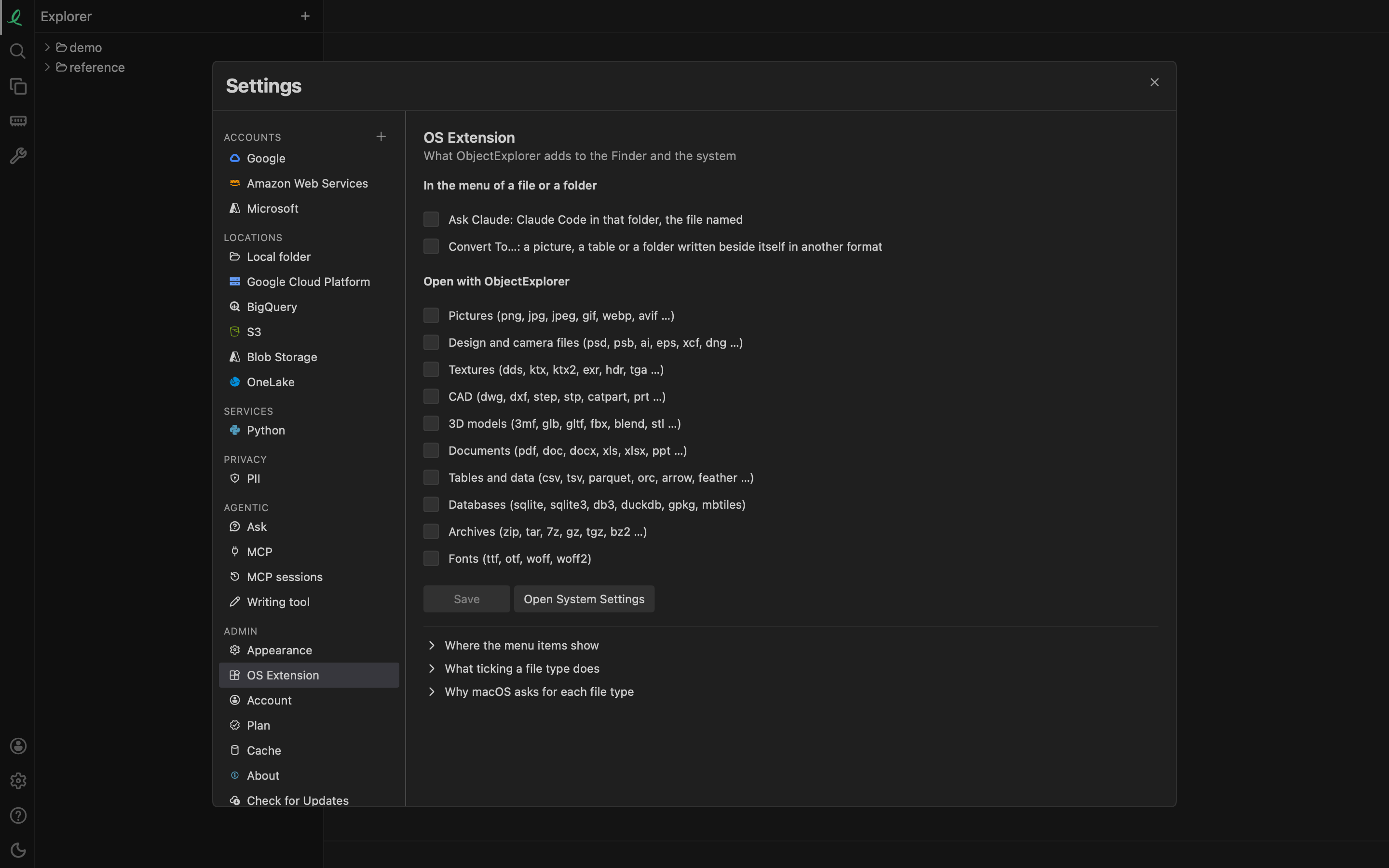
The first time the desktop app starts on macOS or Windows, it opens Settings on that pane, once, so you can see what is there. Leaving it all unticked is fine.
Open with ObjectExplorer
Under Open with ObjectExplorer the pane lists families of files, each with a tick:
| Family | For example |
|---|---|
| Pictures | png jpg webp avif tiff svg |
| Design and camera files | psd ai eps dng cr2 nef |
| Textures | dds ktx2 exr hdr tga |
| CAD | dwg dxf step sldprt catpart |
| 3D models | glb gltf fbx blend stl obj |
| Documents | pdf docx xlsx pptx epub eml |
| Tables and data | csv parquet orc arrow avro h5 |
| Databases | sqlite duckdb gpkg mbtiles |
| Archives | zip tar 7z gz dmg iso |
| Fonts | ttf otf woff woff2 |
- macOS: ObjectExplorer is always in a file's Open With menu for these. A family you tick and save opens in ObjectExplorer on a double-click; untick it and save, and those files go back to the app they had before. macOS asks you to confirm each file type whose app changes, and no app can skip those dialogs, so Save asks once per type (
jpgandjpegare one) and leaves out the ones that open in ObjectExplorer already. The pane says how many it will ask about before, and which you refused after; a refused one stays as it was, and the next Save asks again. - Windows: a family you tick and save offers ObjectExplorer under Open with. Windows leaves the default app to you: Open with → Choose another app, pick ObjectExplorer and Always.
- Linux: there is no pane. The application menu entry that comes with the Linux download names the file types ObjectExplorer opens, so the file manager lists it under Open With.
A file opened this way opens in a tab of the window that is already running, or starts one.
Convert To…
Convert To… in the menu of a file or a folder shows the same ring of formats as Convert To… in the app's own tree, at the pointer. Pick one and the file is written beside the original in that format, which is left as it was:
| What you right-click | Written as, for example |
|---|---|
| a picture | jpg png webp gif pdf tiff |
| a table | csv jsonl xlsx parquet json |
| a document | docx txt html md odt rtf |
| a PDF | docx jpg png txt html md |
| a slide deck | pdf png jpg md html |
| a 3D model | stl obj glb gltf ply 3mf |
| a video or a sound | mp4 mov webm, or wav m4a aiff |
| a folder | an archive: zip tgz tar |
The item shows only on the files it can convert.
Ask Claude
Ask Claude in the same menu opens ObjectExplorer's Claude side bar on that file or folder: your own claude (Claude Code), started in that folder with the file named. It needs Claude Code installed on this machine, and asks before each tool it uses, as it does inside the app.
Where the menu items show
- macOS: in the Finder's right-click menu, once ObjectExplorer is allowed among the Finder's extensions: System Settings → General → Login Items & Extensions → Finder. Open System Settings in the pane goes there, and the pane says so when the Finder still waits for it.
- Windows 11: under Show more options in File Explorer's right-click menu.
- Linux: no menu items yet.
Next: moving around a view.