 ObjectExplorer
Measuring
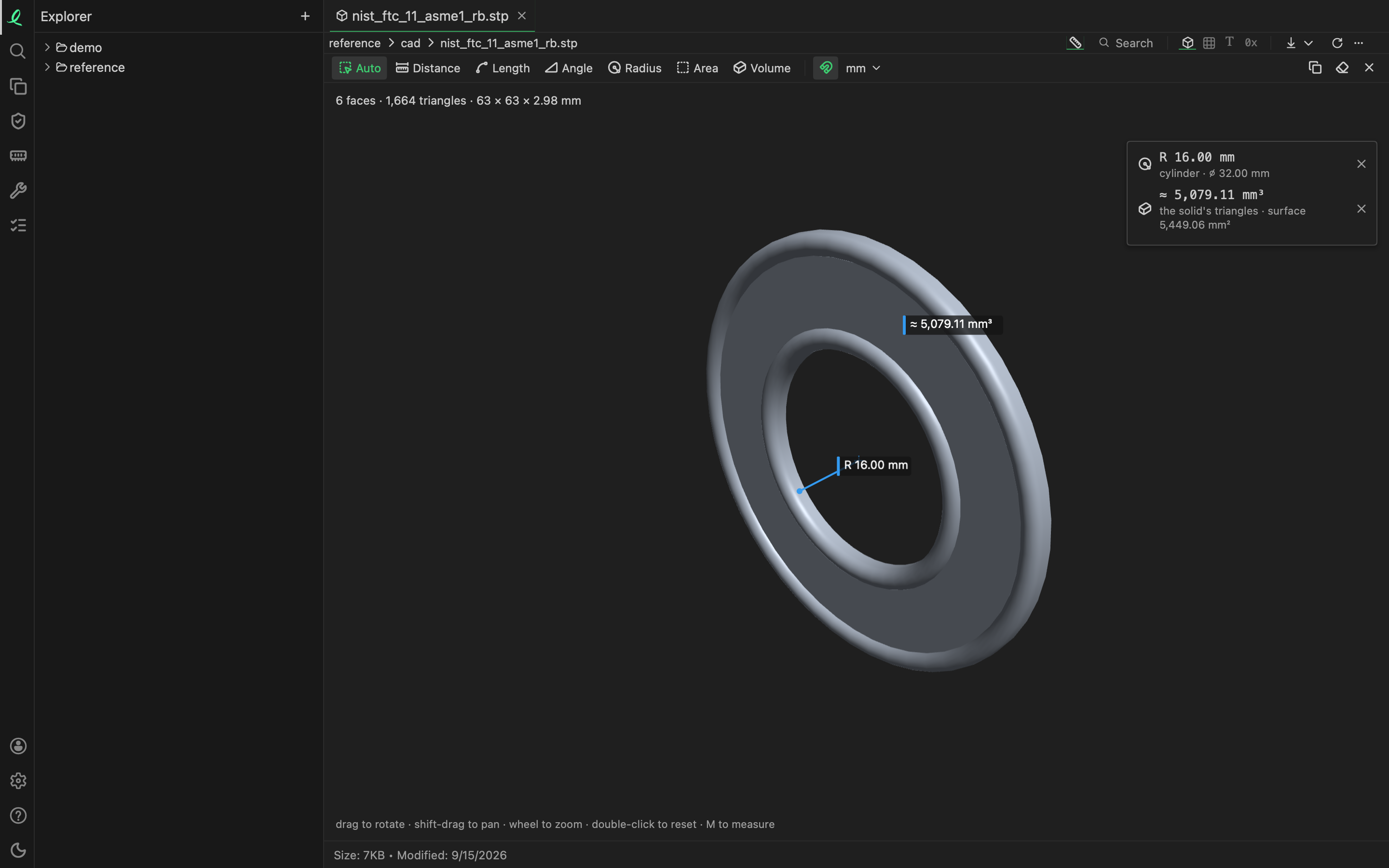
Distances, lengths, angles, radii, areas and volumes are measured where a file is drawn: a drawing, a 3D model, a circuit board, a PDF page or a picture. Nothing is written into the file.
The ruler, Measure, sits before Search in the toolbar of every view that measures; M does the same while the view has the focus. It opens the measuring bar under the toolbar, and the results at the top right of the view.
Where it measures
| View | What it offers |
|---|---|
a drawing: dwg dxf | Auto, Distance, Length, Angle, Radius, Area |
a 3D model or a CAD part: step iges stl obj 3mf … | Auto, Distance, Length, Angle, Radius, Area, Volume |
| a circuit board: KiCad, Altium, Eagle, Gerber and the others | Auto, Distance, Length, Angle |
| a PDF page | Auto, Distance, Angle, Radius, Area, and Set the scale |
| a picture | Auto, Distance, Angle, Radius, Area, and Set the scale |
A schematic shows no ruler: a distance on it means nothing.
The bar
| Button | Key | What it measures |
|---|---|---|
| Auto | Q | what you click: a line's length, an arc's radius, a shape's area |
| Distance | D | point to point; more points make a chain, Enter or a double click ends it |
| Length | L | the length along a line, an arc or a polyline |
| Angle | A | three points, the corner second |
| Radius | R | an arc or a circle, or three points on a rim |
| Area | ⇧A | inside a closed shape, or points round it; Enter or a double click closes it |
| Volume | V | a closed body |
| the magnet | snap to ends, middles and centres; hold ⌥ to free one point | |
| mm ▾ | the unit every result is shown in | |
| Set the scale | S | a PDF page or a picture: two clicks on a length you know, then type it |
| copy | ⌘C | every result on the clipboard as a table |
| eraser | clears the results | |
| ✕ | M Esc | stops measuring |
Auto
Auto measures the thing under the pointer, with no points to place:
- in a drawing, a line gives its length and angle, a circle or an arc its radius and diameter, and a click inside an outline the area it closes, less the holes inside it;
- in a model, a face gives its area, and a round face its radius; from a STEP or IGES file the radius is the file's own, exact. A double click on the body gives its volume and its surface;
- on a board, a pad gives its size, centre and drill, and a track its length; a board's lengths are said in mil beside millimetres;
- on a page or a picture, with nothing to pick, the clicks are points, as in Distance.
Hold ⇧ and click a second thing to measure between the two: the distance between two holes' centres, or the clearance between two tracks, edge to edge.
The results
The results stand at the top right of the view. The one under the pointer comes first, in orange, before you click; each one you made follows, with its kind's icon, its value, and a line on how it was made. Its ✕ removes it, ⌫ removes the last one. A value that comes from a shape cut into straight pieces, such as the area of a curved face, is marked ≈.
The results stay with the tab while it is open; they are not saved.
Units
Every result is in the file's own unit: a DXF's says it in its header, a STEP part is in millimetres, a board in millimetres. mm ▾ shows them all in another at once: mm, cm, m, in, ft or mil. A file that names no unit, such as an STL, measures in its own numbers, "units"; the same menu then asks what one of them is first, and every result follows.
A PDF page or a picture
A PDF page measures on paper until it knows its scale: a distance reads in millimetres of the page, the way a ruler laid on the print would. A PDF that carries its own scale is measured at it. A picture measures in pixels.
Set the scale (S) teaches it: click the two ends of a length you know, such as a dimension line, type how long it is, and pick its unit; the box says how far apart the two points are now. On a document of several pages it is set for This page or Every page. From then on every result is in real units.
Next: column summaries.